
related blog

Best Practices
8
How to Export Your Projects and Photos from CompanyCam
A practical guide to exporting your projects, photos, team and checklists from CompanyCam, plus the eleven lessons we've learned helping contractors switch every week.
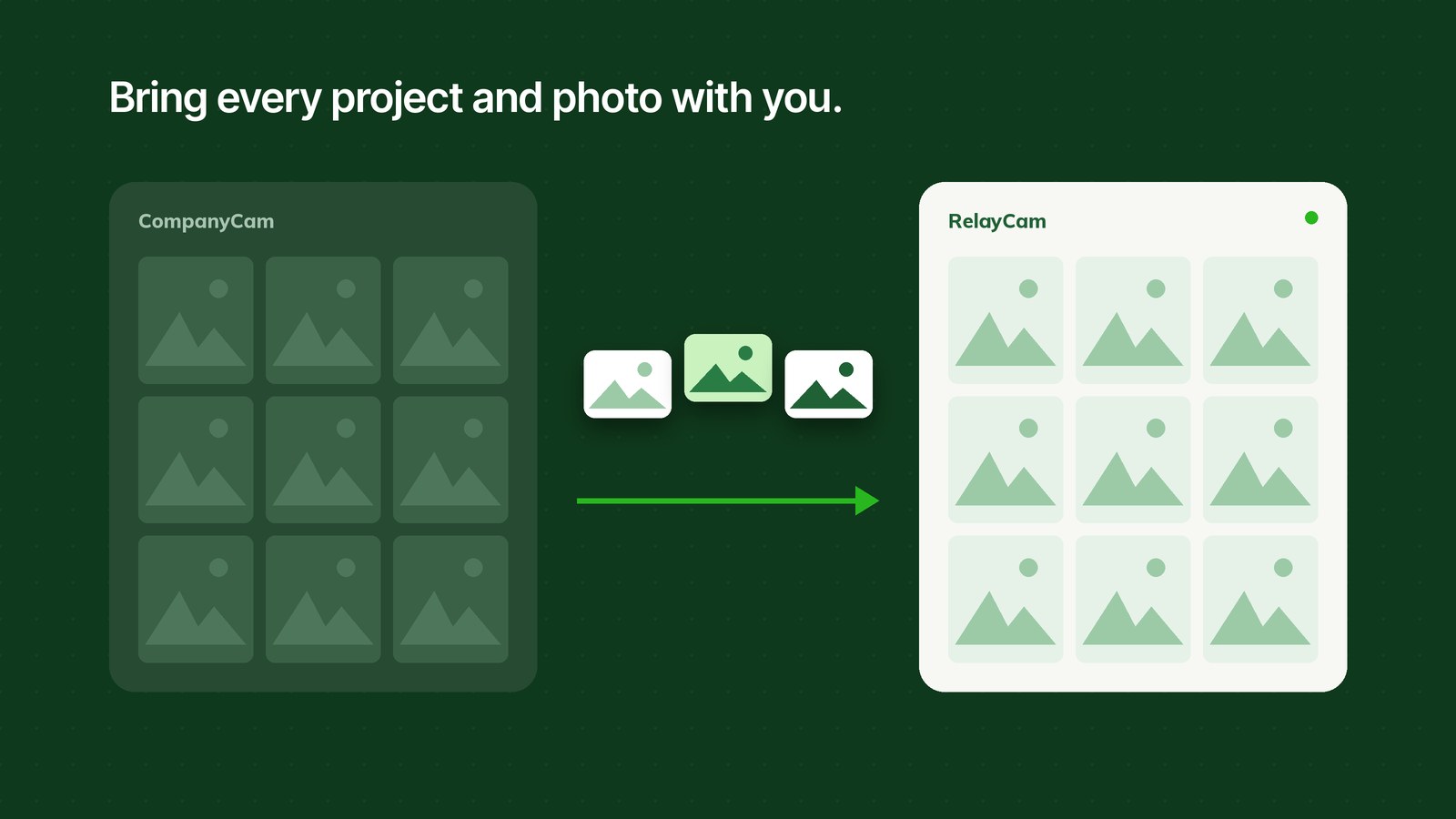
Thinking about switching photo apps, but worried about leaving years of projects and photos behind? You don't have to. You can export your projects, photos, and other content from CompanyCam and bring it with you. Every week, teams do exactly that when they move to RelayCam.
This guide explains how exporting from CompanyCam works, what comes along and what doesn't, and the practical lessons we've picked up from helping contractors make the move.
Here's what you need to know:
- You export with a CompanyCam access token. You create it in your own CompanyCam account, and it lets a tool read your content through CompanyCam's API.
- Exporting copies your content. It doesn't change or delete anything in your CompanyCam account.
- Most accounts finish within a few days. Projects and photos usually come first. Tags and comments take longer.
- Big accounts are fine. CompanyCam's API normally returns only your 10,000 most recent projects, but there are ways past that limit.
- Timing matters more than software. A good plan is built around your renewal date, a test batch, and a clean-up pass after the switch.
How exporting from CompanyCam works
CompanyCam lets you create an access token in your account. Think of it like a spare key that you control. A tool you trust can use it to read your projects, photos, and other content through CompanyCam's API, and copy that content somewhere else. You never hand over your CompanyCam password, and you can delete the token whenever you like.
A few things are worth knowing up front:
- You need to be a CompanyCam admin to create the token.
- It's a copy, not a move. Your CompanyCam account stays exactly as it is until you decide to cancel.
- Delete the token when you're done. It gives access to your account, so remove it from your CompanyCam access tokens page after the move.
What you can export from CompanyCam
- Projects, with their addresses, locations, notes, tags, and files
- Photos, with their descriptions, tags, comments, the date they were taken, and GPS location
- Your team, with their roles and who's on each project
- Checklists and documents
- Videos, which have to be pulled separately because CompanyCam doesn't offer videos through its API
What doesn't come along
- CompanyCam reports. Download the PDF of any report you'll need again, like ones for warranty or insurance claims, before you cancel.
- Projects another company owns, where you're only a collaborator, and media stored in CompanyCam Groups. These need a closer look, so flag them early.
How to export your content from CompanyCam
The first step is the same no matter how you move your content: create an access token.
- Go to app.companycam.com/access_tokens while signed in as a CompanyCam admin.
- Click New Token.
- Select N/A from the dropdown.
- Click Create Token and copy the token.
From there, you have two options. If you're moving to RelayCam, our team can run the export and import for you, which is what most people choose. Smaller accounts can also run the import themselves from the RelayCam web app. We've laid out both paths, step by step, in our Help Center article: How to export your projects and content from CompanyCam to RelayCam.
What we've learned helping teams switch
Moving the data is the easy part. Most of what goes well or badly comes down to planning. Here are the eleven things we'd tell any contractor before they switch, in the order you'll need them.
1. Start with your renewal date, not the day you decide to switch
Work backward from when your current plan renews. We like to pick a switch date about a week before renewal. That leaves room to check everything and cancel on time, instead of paying for another cycle because the move wasn't quite finished.
2. Decide what you actually want to bring
You can bring everything. You can also bring only certain people's projects, or bring everything and archive older jobs so your active project list starts clean. Archiving keeps the active list short and current, which is easier for crews who open the app every day.
3. Ask for a test batch first
Before the full move, import a handful of projects, with their members and contacts, and look at them. It takes little time, and it shows you how things will look in the new app while changes are still easy. If you want project owners and managers set up a particular way, this is the moment to check it. Then the rest comes over with no surprises.
4. Confirm emails and crew details before anything runs
People are matched by email address, so a typo or an address that's already tied to a different account can cause trouble. Before the import, confirm the admin's email, plus each crew member's name, email, and phone number. Use an email for your new account that isn't already on a different RelayCam account. A two-minute check here saves a lot of back-and-forth later.
5. Move the older work first, and keep working as normal
Years of history take the longest, and your crew doesn't need it to be ready on day one. Copy the older work first while everyone keeps using CompanyCam as usual. Then bring over what's new right before the switch, so nothing is missing.
6. Plan for tags and comments to take longer
CompanyCam's API has rate limits, and they decide how fast content can be exported. Projects and photos usually come over first, often within a day. Photo tags and comments are limited more tightly, so on accounts with years of tagged photos they can add a few days. That's the main reason to start early.
7. Handle videos, reports, and Groups separately
Videos aren't available through CompanyCam's API, so they have to be pulled separately. Plan for them as their own step instead of an afterthought. Reports don't transfer at all, so download the PDFs you might need later, such as warranty or insurance records, before you cancel. Media stored in CompanyCam Groups needs a closer look, so tell us early if you rely on it.
8. Get your crew ready before the switch
Set up logins a few days ahead so everyone can sign in early. Then text the crew the start date and the app link, so nobody wonders where their jobs went on Monday morning.
9. Check it the way your crew will use it
Don't just look at your own login. On day one, have a few people from your crew sign in and search for the jobs they're working on. Make sure each person can see the projects they should, and that owners and managers carried over the way you expect.
Spot-check a few old projects and a few new ones too. If something's missing, you want to hear about it in the first week, not after your crew has been frustrated for a month.
10. Plan a clean-up pass about two weeks later
Content can keep landing in CompanyCam while a team gets used to the new app. A catch-up import at the switch picks up what's new, and a second clean-up import around two weeks later catches anything that lingered. Put it on the calendar when you plan the move, so it doesn't get forgotten.
11. Know how you'll share reports afterward
Once you're on the new app, reports are how customers and inspectors see your work. Report PDFs can be downloaded compressed or full size. If you email several reports at once, the compressed versions help you stay under attachment size limits. Figure this out before your first big report goes out, not after.
When you're satisfied everything is there, cancel CompanyCam before it renews, and delete your CompanyCam access token. It's a two-minute job that closes off access to your account.
What if you have a big account?
CompanyCam's API normally returns only your 10,000 most recent projects. That's the one limit that surprises people with years of history. There are ways to get past it, and we've moved accounts with as many as 50,000 projects. If you're anywhere near that size, plan the move with someone who has done it before so your full history comes over.
A simple switching timeline
- About a week before renewal: pick your switch date and create your access token.
- Early on: confirm emails and crew details, then import a test batch for you to review.
- Before the switch: older projects and photos are copied while you keep using CompanyCam as normal. Crew logins are ready a few days early.
- Friday: your crew uses CompanyCam one last day.
- The weekend: anything new is copied over.
- Monday: your crew starts in RelayCam, and a few of them confirm they can see their projects.
- About two weeks later: a clean-up import catches anything that lingered.
- After that: cancel CompanyCam before it renews, and delete the access token.
That's a typical plan. It can shift to fit your business.
Frequently asked questions
Can I export from CompanyCam myself?
Yes. Create an access token in CompanyCam and use it with an import tool. For larger accounts, we recommend having someone handle it with you.
Can I try a few projects before moving everything?
Yes. We recommend it. A small test batch, with project members and contacts, lets you review how things look before the rest comes over.
Will exporting delete or change anything in CompanyCam?
No. Exporting only copies your content, and your CompanyCam account stays as it is.
What about photos my crew takes in CompanyCam during the switch?
A catch-up import at the switch picks up what's new, and a clean-up import about two weeks later catches anything that lingered.
Do I need my CompanyCam API key?
You need a CompanyCam access token, which some people call an API key. You create it in a couple of minutes at app.companycam.com/access_tokens.
How long does it take?
Most accounts finish within a few days, and many are done sooner. The speed depends on how much content you have and on CompanyCam's API rate limits.
Can I move my videos?
Yes, but they have to be pulled separately, because CompanyCam doesn't offer videos through its API.
Ready to make the move?
If you're thinking about switching, we'd be happy to help you plan it. Message us using the chat bubble on relaycam.com, or read the full walkthrough in our Help Center: How to export your projects and content from CompanyCam to RelayCam.
Still comparing options? See what RelayCam does and how pricing works.
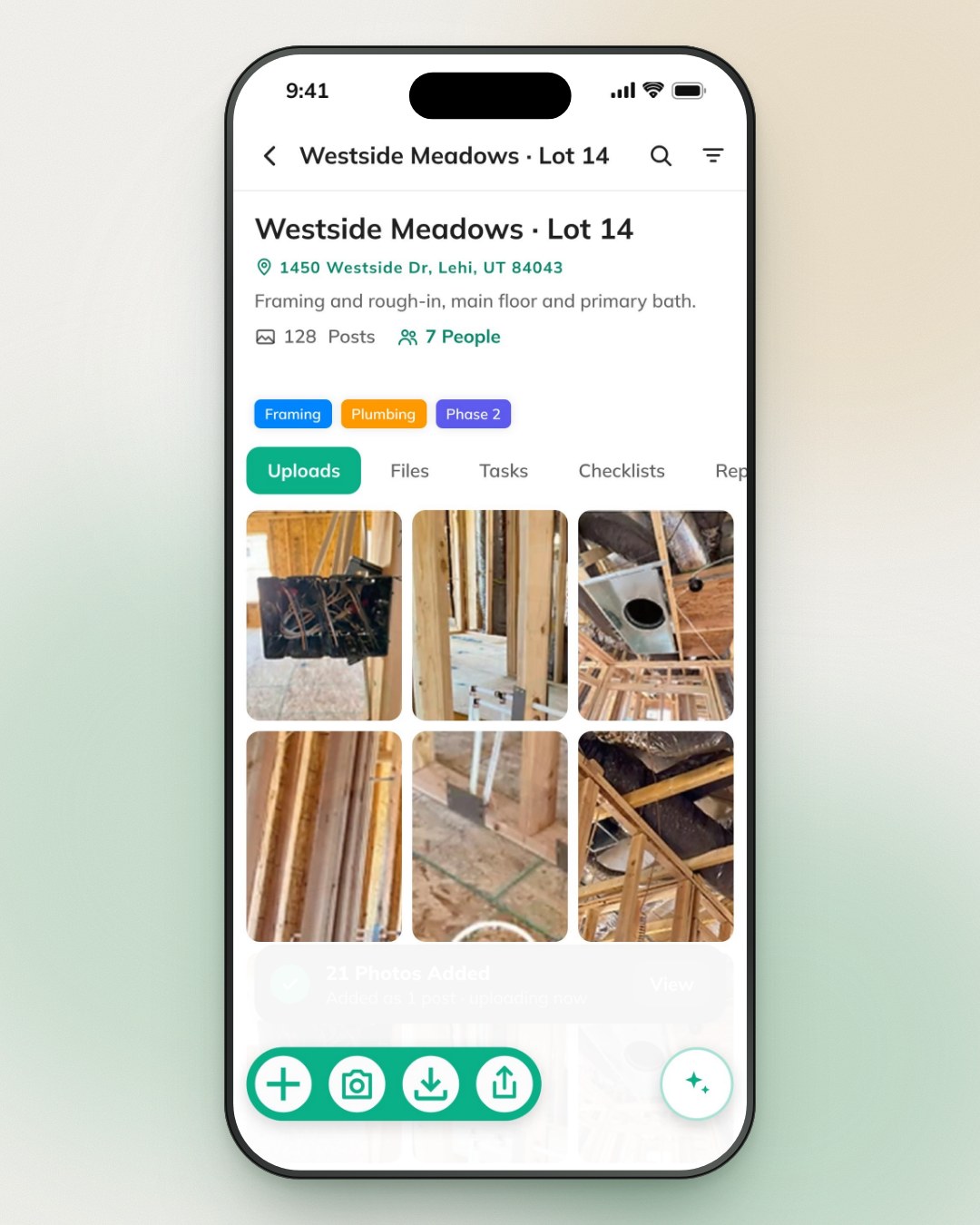


See RelayCam in action
Start your free trial now by clicking the button below


Wanna chat or demo?
Questions? Concerns? Requests? Talk to a real human

Watch a RelayCam demo now
Short on time, busy, got jobs to do? See how RelayCam works now!