
related blog

Best Practices
4
Smart Uploader: upload a job's photos by location
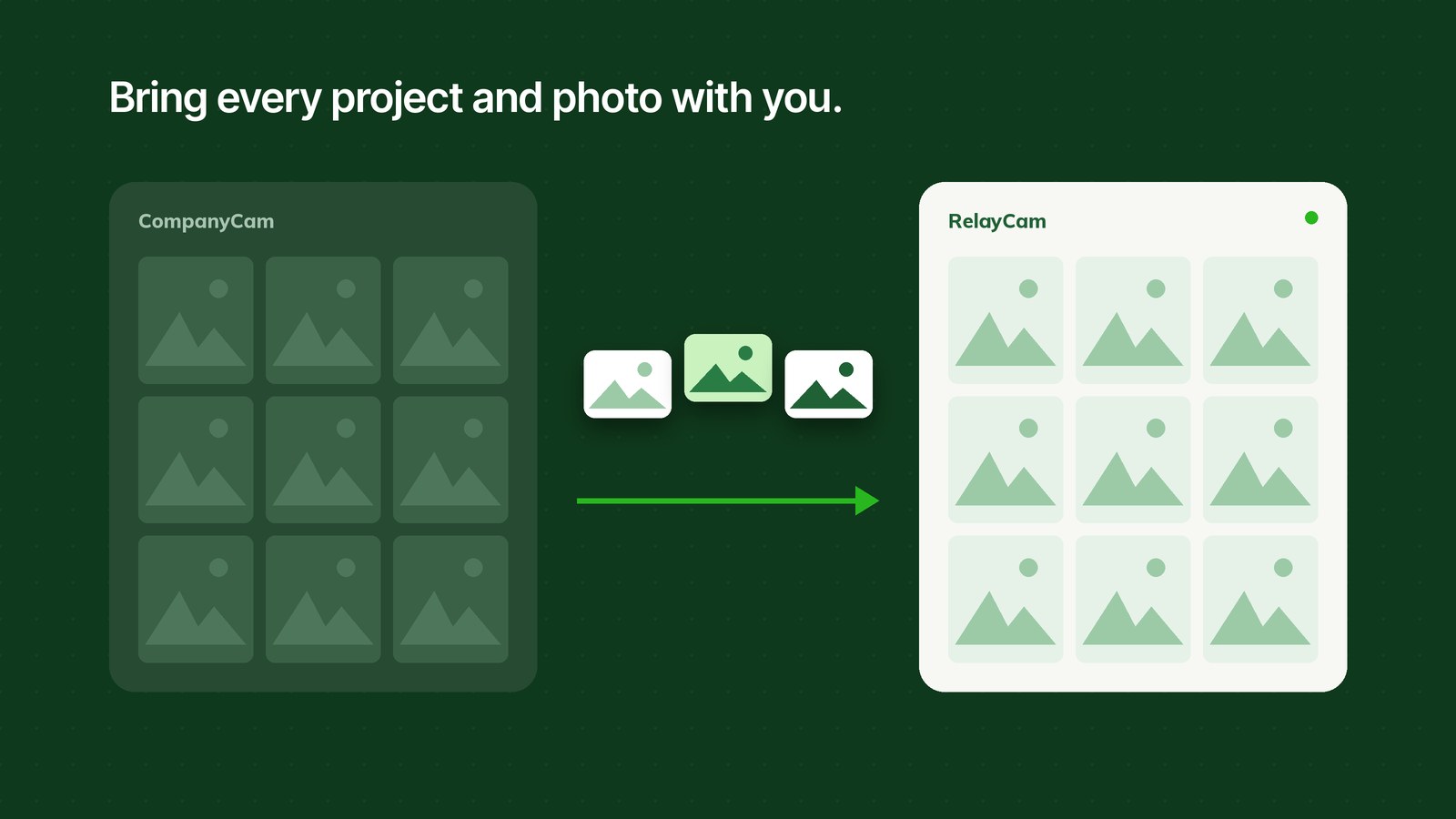
RelayCam now finds the photos on your phone that were taken at a job's location and uploads them to that project. No more scrolling your camera roll to pick out the right shots.
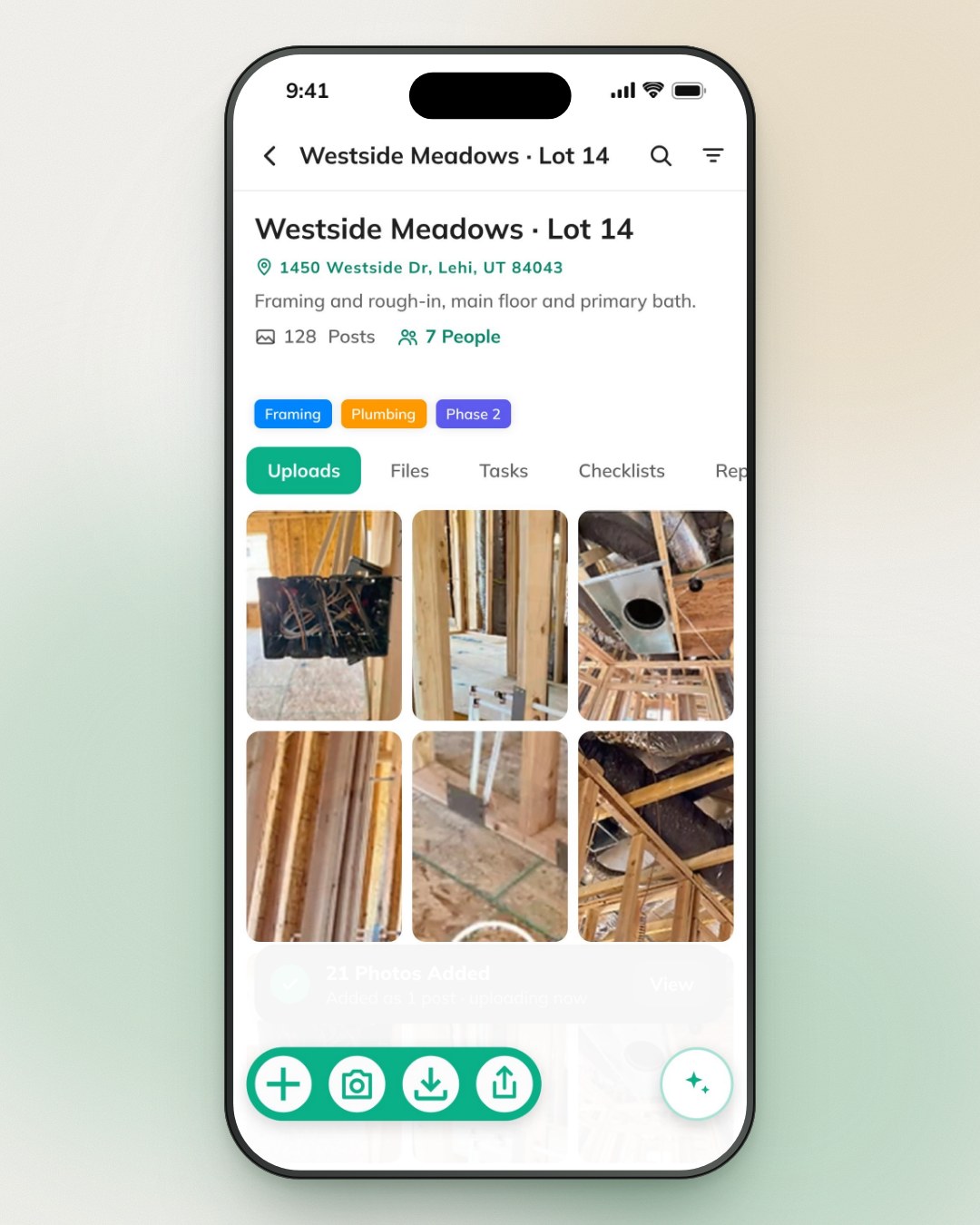
Plenty of job photos never start in RelayCam. Someone grabs a shot with the phone's camera because it was quicker, or forgets to open the app before the walkthrough starts. Those photos are part of the job record, but picking them out of a camera roll by hand is slow, so they tend to stay on the phone.
Smart Uploader fixes that. It looks at where each photo on your phone was taken and matches it to the project at that location. You check what it found and upload, and the photos join the rest of the job's photos for the whole team to see.
The short version:
- Smart Uploader finds the photos on your phone that were taken at a project's location.
- You review them and choose what goes in. Nothing uploads until you do.
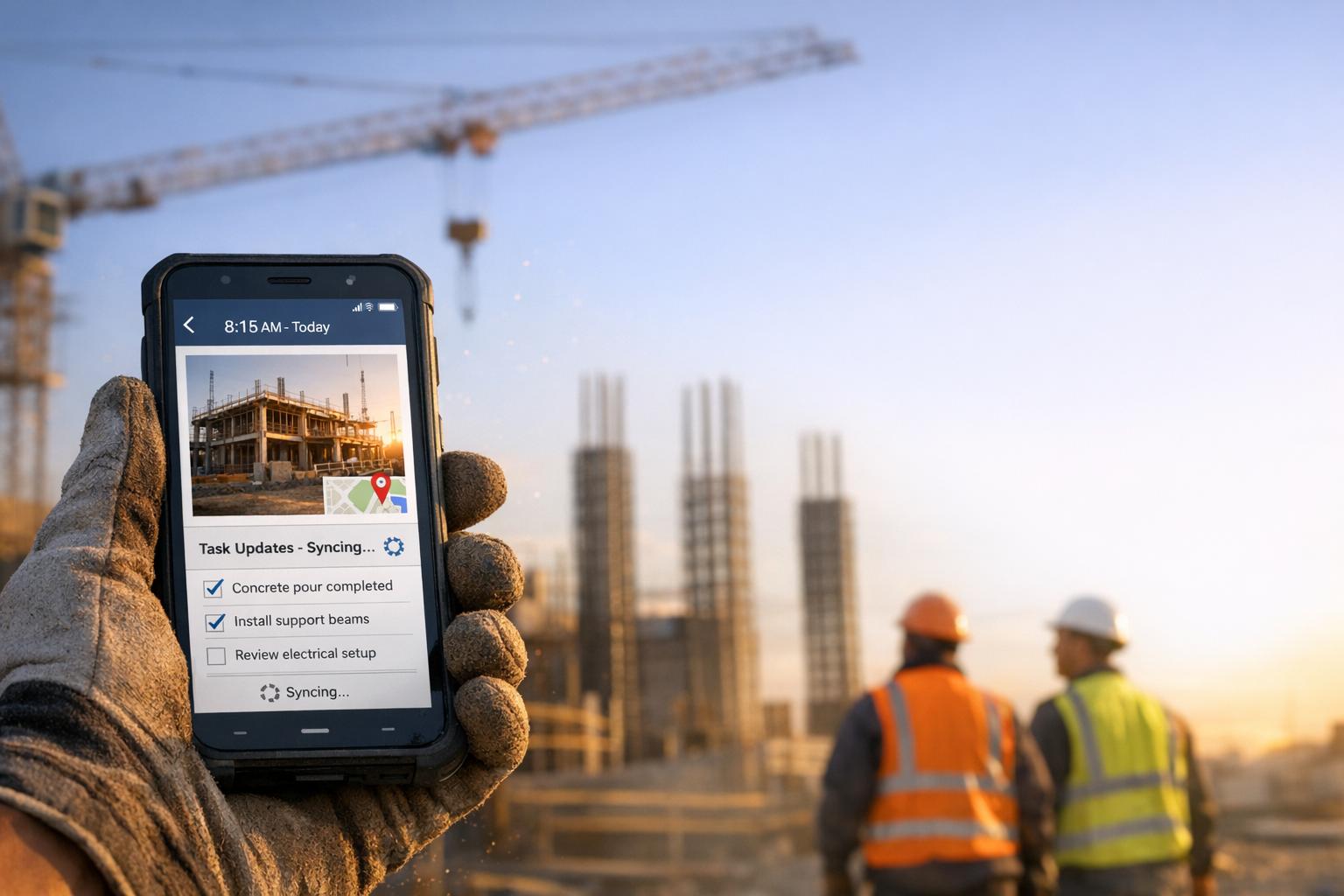
- The photos land in the project as one post, where the whole team can see them.
Why job photos get stuck on phones
It's rarely laziness. The phone's camera is one swipe from the lock screen, and the moments that matter on a job don't wait for an app to open: a soft spot in the decking, a meter reading, the inspector pointing at something. So the photo gets taken, and it sits in the camera roll with hundreds of others.
Getting those photos into the right project later means scrolling back through days of pictures and guessing which ones belong to which job. In a busy week, with a few jobs in the same part of town, the guessing gets hard. Most people give up, and the job record ends up with gaps right where you'll want proof later.
How Smart Uploader finds the right photos
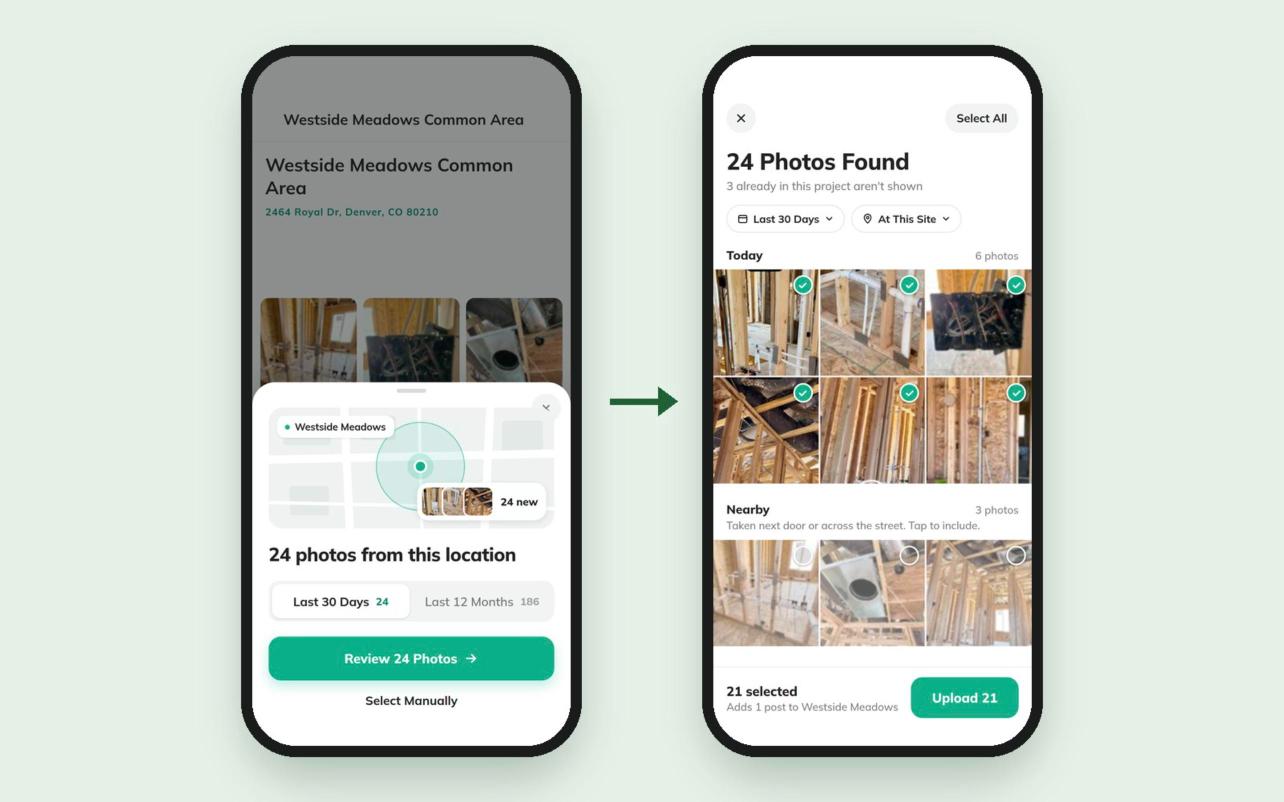
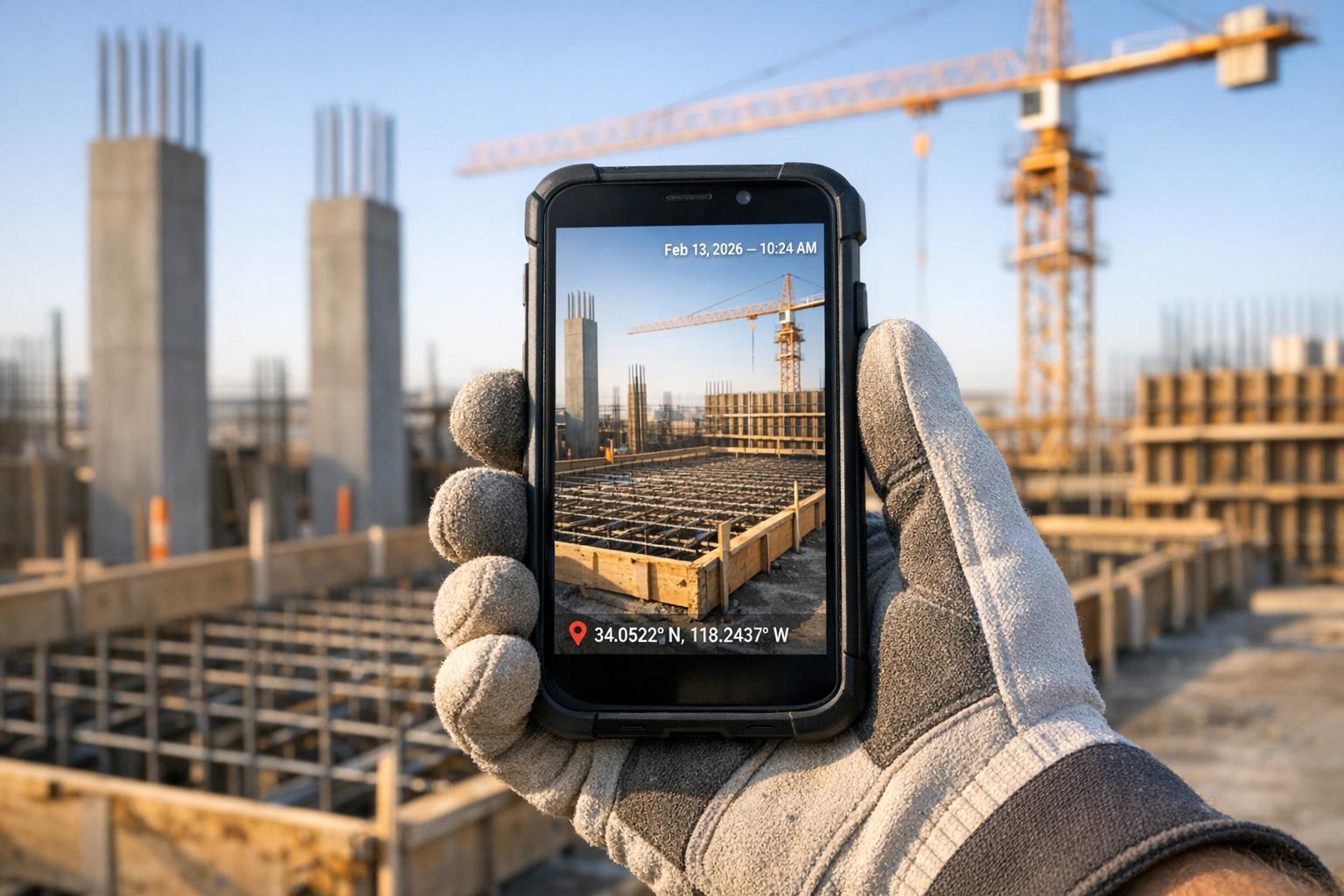
When location is turned on for the camera, every photo your phone takes saves where it was taken. Every RelayCam project has an address. Smart Uploader connects the two: it looks through your camera roll for photos taken at the project's location and gathers them for you.
A few details make the results easy to trust:
- It shows you the count first. You see how many photos it found at the site, for the last 30 days or the last 12 months.
- Photos already in the project are left out, so you don't upload the same shot twice.
- Nearby photos are kept separate. Shots taken next door or across the street show up under Nearby, unchecked. Tap one to include it.
How to use it
- Open the project you want photos for.
- Tap the + button, then Upload Photos.
- Choose Last 30 Days or Last 12 Months to see how many photos it found, then tap Review.
- Uncheck anything that doesn't belong, then tap Upload.
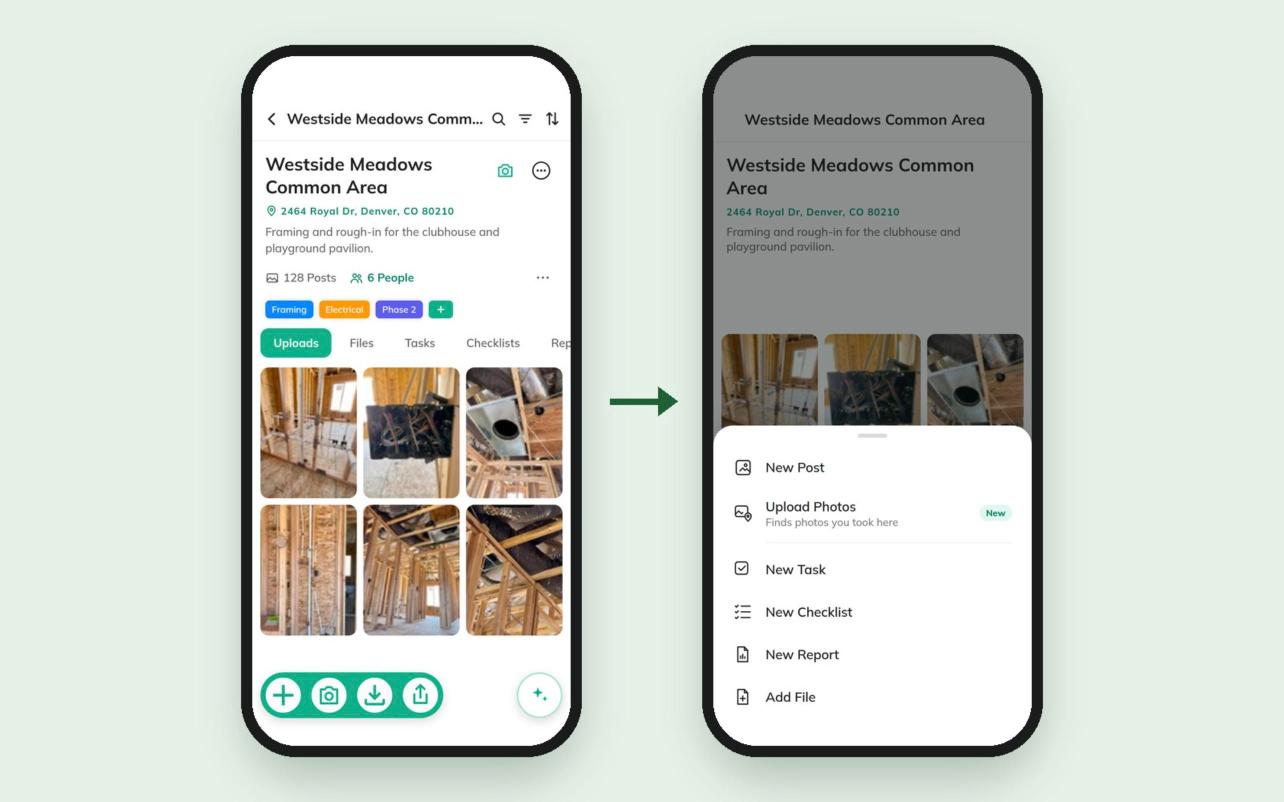
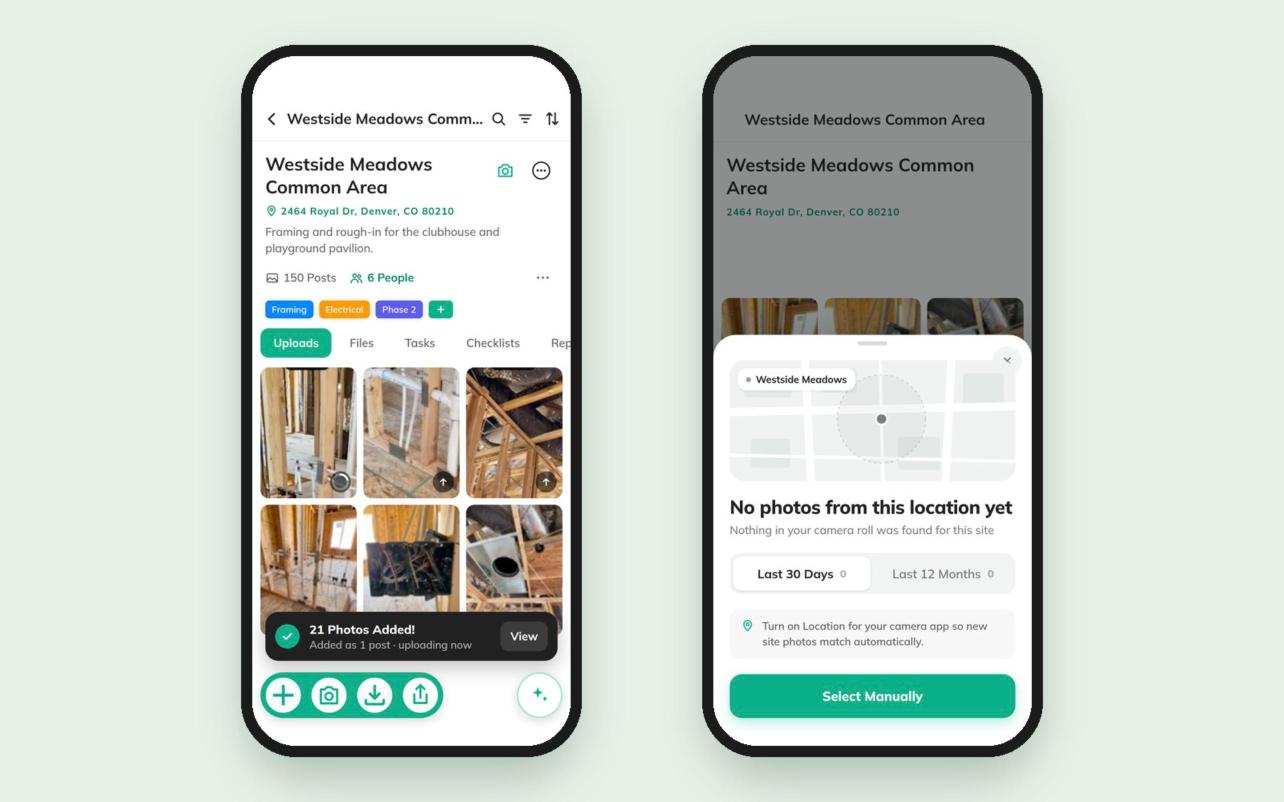
The first time you use it, your phone asks for photo access. Choose Allow Full Access so the search can see every photo. The photos then upload in the background and land in the project together as one post.
You decide what gets uploaded
Smart Uploader doesn't upload anything on its own. Nothing leaves your phone until you've reviewed the photos and tapped Upload.
That matters, because a camera roll from a work day holds more than job photos: a receipt from the supply house, a picture from your kid's game that evening, a screenshot of a text. Uncheck those during review and they stay on your phone.
Get the most out of it
- Turn on location for your camera. Smart Uploader can only match photos that saved a location. On iPhone, go to Settings, then Privacy & Security, then Location Services, then Camera, and choose While Using the App. On Android, turn on location tags in your camera app's settings.
- Check the project's address. Matching starts from the project's location, so a missing or wrong address means missed photos.
- Make it part of closing out the day. A quick pass before you leave the site, or a weekly sweep by the office, keeps every job's record complete without chasing anyone.
- Add the rest the usual way. Screenshots, images saved from texts, and photos taken with location off have nothing to match, so add those to the project directly. Our Help Center shows how to upload photos from your camera roll or computer.
Who it's for
- Office managers catching up on photos from the field without texting crews to send them in.
- Crews who shoot with the phone's camera first and remember RelayCam later.
- Owners who want a complete photo record for warranty and insurance questions.
Frequently asked questions
Does Smart Uploader upload photos automatically?
No. It finds photos taken at the job and shows them to you. Nothing uploads until you review them and tap Upload.
Will it upload photos that are already in the project?
No. Photos already in the project aren't shown, so you won't add duplicates.
What if it finds hundreds of photos?
You can upload up to 100 at a time. Switch the range to the last 30 days to narrow it down, or run it again for the rest.
Why didn't it find some of my photos?
Usually because location was off when the photo was taken, so there's no location to match. Screenshots and images saved from texts often don't carry one either. If it finds nothing, you can still tap Select Manually and pick photos yourself.
Where do the photos go?
Into the project you started from, grouped together as one post, where everyone on the project can see them.
Want to see it first? Watch it in action in the Smart Uploader section of our features page.
See RelayCam in action
Start your free trial now by clicking the button below


Wanna chat or demo?
Questions? Concerns? Requests? Talk to a real human

Watch a RelayCam demo now
Short on time, busy, got jobs to do? See how RelayCam works now!